
AWS
Project: AWS CloudTrail → Amazon S3 → Amazon Athena
By Sagar Panwar · · 8 min read
We will build this using the AWS Management Console, step by step. I will use Asia Pacific (Mumbai) – ap-south-1 for the examples, consistent with your earlier AWS labs.
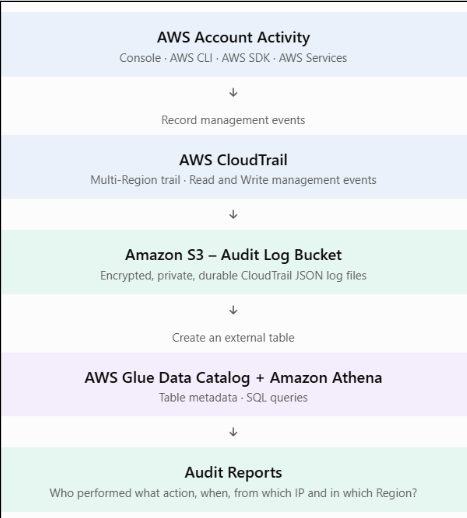
Before starting: understand your existing Event History
Below screenshot shows events such as:
- ConsoleLogin
- GetSigninToken
- DetachInternetGateway
- DeleteInternetGateway
- DeleteVpc
- DeleteSecurityGroup
- DeleteSubnet
These are useful examples of AWS management activity. However, there is an important distinction: Event History and a CloudTrail trail are not the same thing.
Event History gives you a searchable, downloadable record of the past 90 days of management events.
A trail delivers ongoing event log files to S3. Creating a trail does not automatically copy the events already displayed in Event History into S3.
For our project, we will capture new events from the point at which the trail starts logging.
You can also download your existing Event History as a CSV file for separate historical reference.
AWS supports downloads of up to 200,000 events per file.
Phase 1 – Check your existing CloudTrail configuration
Do not create anything yet.
Step 1.1 – Open CloudTrail
- Sign in to your AWS Management Console.
- Search for CloudTrail.
- Open the CloudTrail service.
- Check the Region selector in the top-right corner.
- Select Asia Pacific (Mumbai) ap-south-1.
Step 1.2 – Check existing trails
- In the left navigation panel, click Trails.
- Check whether any trails already exist.
- If a trail exists, click its name.
- Inspect the following:
| Property | What to check |
|---|---|
| Trail name | Existing trail name |
| Multi-Region trail | Yes/No |
| Logging | Enabled/Disabled |
| S3 bucket | Destination bucket |
| Management events | Read and Write |
| Log file validation | Enabled/Disabled |
For our first project, one suitable multi-Region trail is enough.
What should you do?
- If there is no trail, proceed to Phase 2.
- If a suitable multi-Region trail already exists, we can reuse it.
- If a trail exists but is not logging to S3 or is missing Read/Write management events, we can update it.
Phase 2 – Create the CloudTrail trail
We will configure CloudTrail to capture management events across all enabled AWS Regions.
Step 2.1 – Start trail creation
- Open CloudTrail → Trails.
- Click Create trail.
- Enter the following configuration.
| Setting | Value |
|---|---|
| Trail name | zeron-management-trail |
| Enable for all accounts in my organization | Leave unchecked for a standalone account |
| Storage location | Create new S3 bucket |
| S3 bucket name | zeron-cloudtrail-audit-<ACCOUNT_ID>-ap-south-1 |
| Log file prefix | Leave empty for this lab |
Replace <ACCOUNT_ID> with your actual 12-digit AWS account ID.
To find it, click your account name in the top-right corner of the AWS Console and copy the account ID.
Example bucket name:
zeron-cloudtrail-audit-123456789012-ap-south-1
Remember, S3 bucket names must be globally unique.
- Select the option to create a new S3 bucket.
- Leave the bucket configuration otherwise at its recommended defaults.
Why create the bucket through CloudTrail?
CloudTrail can automatically create and configure the required S3 bucket policy for log delivery. This avoids manually writing the service-principal permissions.
Step 2.2 – Configure encryption
You will see an option for Log file SSE-KMS encryption.
For this introductory implementation, disable that option so CloudTrail uses SSE-S3 encryption. This avoids introducing KMS key policies and additional permissions into the first exercise.
CloudTrail log files remain encrypted at rest.
Step 2.3 – Additional settings
Keep the following settings:
| Setting | Configuration |
|---|---|
| Log file validation | Enabled |
| SNS notification delivery | Disabled for now |
| CloudWatch Logs | Not configured |
| Tags | Optional |
Log file validation is useful because CloudTrail creates digest files that help verify whether delivered log files have been modified or deleted after delivery.
Step 2.4 – Configure event types
This is important. On the Choose log events page:
Under Management events:
| Event type | Selection |
|---|---|
| Read | Enabled |
| Write | Enabled |
| Exclude AWS KMS events | Unchecked |
| Exclude Amazon RDS Data API events | Unchecked |
Under Data events: Do not enable any data event selectors for this initial project.
Under Insights events: Leave disabled.
Under Network activity events: Leave disabled.
Why?
Management events are sufficient for our initial account-audit exercise. Data events, such as individual S3 object reads and writes, can be added later and have separate pricing considerations.
AWS also recommends starting with management events for an introductory trail.
Step 2.5 – Review and create
Review these settings:
- Correct trail name.
- Correct S3 bucket.
- Multi-Region logging.
- Read and Write management events.
- Log file validation enabled.
Click Create trail.
Expected result
Your trail should appear on the Trails page with logging enabled and Multi-Region set to Yes. Console-created trails are multi-Region by default.
Phase 3 – Verify CloudTrail is delivering logs to S3
Do not proceed to Athena until you verify that actual files are arriving in S3.
Step 3.1 – Generate a test event
We will generate a harmless read-only API event.
- Open AWS CloudShell from the AWS Console.
- Wait for the terminal to become available.
- Execute:
aws ec2 describe-vpcs `
  --region ap-south-1 `
  --query 'Vpcs[].VpcId' `
  --output table
This, calls the EC2 DescribeVpcs API. It does not create, modify or delete a VPC.
Because we enabled Read management events, this is an appropriate test.
Step 3.2 – Verify in Event History
- Navigate to CloudTrail.
- Open Event history.
- Select Region ap-south-1.
- Set Lookup attributes to Event name.
- Search for:
DescribeVpcs
You should find the API event generated by CloudShell.
- Open the event and inspect:
- Event name.
- Event time.
- AWS Region.
- Source IP address.
- User identity.
- Read-only status.
Step 3.3 – Verify the S3 bucket
CloudTrail typically delivers log files within an average of approximately five minutes, but delivery time is not guaranteed.
Now:
- Open Amazon S3.
- Select your CloudTrail audit bucket.
- Navigate through the folders.
The path will look like:
zeron-cloudtrail-audit-123456789012-ap-south-1/
    AWSLogs/
        123456789012/
            CloudTrail/
                ap-south-1/
                    2026/
                        11/
                            04/
                                *.json.gz
Your actual account ID, date and Region will determine the folder structure. Because this is a multi-Region trail, you may also see folders for other enabled Regions.
Step 3.4 – Understand the log file
CloudTrail stores compressed JSON log files with the .json.gz extension. A simplified example of an individual event inside one of those files looks like:
{
  "eventVersion": "1.11",
  "userIdentity": {
    "type": "AssumedRole",
    "arn": "arn:aws:sts::123456789012:assumed-role/example-role/session"
  },
  "eventTime": "2026-11-04T05:15:00Z",
  "eventSource": "ec2.amazonaws.com",
  "eventName": "DescribeVpcs",
  "awsRegion": "ap-south-1",
  "sourceIPAddress": "example-address",
  "readOnly": true,
  "eventType": "AwsApiCall",
  "eventCategory": "Management"
}
This is an illustrative event, not your actual recorded output.
Notice something important: CloudTrail stores structured event information, not just a plain-text message.
Phase 4 – Configure Athena query results
Before querying CloudTrail logs, Athena needs an S3 location where it can store query results. This is separate from the CloudTrail audit log storage location. Create a SECOND BUCKET.
Step 4.1 – Create the Athena results bucket
- Open Amazon S3.
- Click Create bucket.
- Configure:
| Setting | Value |
|---|---|
| Bucket name | zeron-athena-results-<ACCOUNT_ID>-ap-south-1 |
| AWS Region | ap-south-1 |
| Object Ownership | Bucket owner enforced |
| Block Public Access | All enabled |
| Default encryption | SSE-S3 |
- Leave the remaining settings at their defaults.
- Click Create bucket.
This bucket will store SQL query output, not the original CloudTrail records.
Step 4.2 – Configure Athena
- Open Amazon Athena.
- Confirm the Region is ap-south-1.
- Open Query editor.
- Select the primary workgroup.
- Click Settings.
- Choose Manage.
- Find Query result location.
- Enter:
s3://zeron-athena-results-<ACCOUNT_ID>-ap-south-1/query-results/
Replace <ACCOUNT_ID> with your account ID.
- Click Save.
- Return to Editor.
This setting is mandatory before you can run queries when the workgroup does not already provide an output location.
Phase 5 – Create an Athena table for CloudTrail logs
This is the most important integration step. Athena does not automatically understand the contents of your S3 bucket. We need to create table metadata describing the JSON log structure and its S3 location.
AWS provides a shortcut to create a CloudTrail table from the CloudTrail console.
Step 5.1 – Create Athena table
- Open AWS CloudTrail.
- Select Event history.
- Look for the Create Athena table.
- Click it.
AWS provides this option to create a non-partitioned Athena table directly from a CloudTrail trail's S3 logs.
Step 5.2 – Select the storage location
You will be asked to select a storage location.
Choose the S3 bucket:
zeron-cloudtrail-audit-<ACCOUNT_ID>-ap-south-1
Select the bucket associated with your trail.
Click Create table.
The console creates the Athena table using the CloudTrail log structure.
Expected result – You should receive confirmation that the table was created.
Note the generated table name.
Step 5.3 – Open Athena
- Open Amazon Athena.
- Go to the Query editor.
- Find the Data section.
- Select the AwsDataCatalog data source.
- Select the database and the generated CloudTrail table.
The table name may be based on your bucket name. Do not guess it. Read the actual generated name from the Athena console.
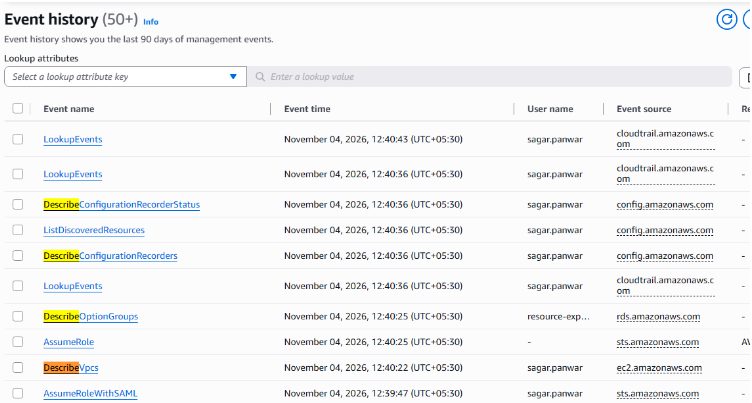
At this point, the architecture should be:
CloudTrail
    |
    v
S3 Bucket
    |
    v
Athena Table
    |
    v
SQL Query
Phase 6 – Run your first SQL queries
Now we can start investigating AWS account activity. In the following queries, replace your_cloudtrail_table with the actual table name created in Athena.
Query 1 – See the latest account activity
SELECT
    eventtime,
    eventsource,
    eventname,
    useridentity.arn AS user_arn,
    sourceipaddress,
    awsregion
FROM your_cloudtrail_table
ORDER BY eventtime DESC
LIMIT 50;
This answers:
- Which AWS API was called?
- Which AWS service was involved?
- Who performed the action?
- From which IP address?
- In which Region?
Query 2 – Find infrastructure modifications
This is particularly useful because your Event History screenshot contains VPC deletion and modification events.
SELECT
    eventtime,
    eventname,
    useridentity.arn AS user_arn,
    sourceipaddress,
    awsregion
FROM your_cloudtrail_table
WHERE eventsource = 'ec2.amazonaws.com'
AND readonly = 'false'
ORDER BY eventtime DESC
LIMIT 100;
This displays write operations recorded by CloudTrail for EC2-related API activity.
Query 3 – Investigate VPC changes
SELECT
    eventtime,
    eventname,
    useridentity.arn AS user_arn,
    sourceipaddress,
    requestparameters
FROM your_cloudtrail_table
WHERE eventsource = 'ec2.amazonaws.com'
AND eventname IN (
    'CreateVpc',
    'DeleteVpc',
    'CreateSubnet',
    'DeleteSubnet',
    'CreateSecurityGroup',
    'DeleteSecurityGroup',
    'CreateInternetGateway',
    'DeleteInternetGateway',
    'AttachInternetGateway',
    'DetachInternetGateway'
)
ORDER BY eventtime DESC;
This will be useful for investigating changes to your VPC infrastructure.
Query 4 – Identify failed API calls
SELECT
    eventtime,
    eventsource,
    eventname,
    useridentity.arn AS user_arn,
    errorcode,
    errormessage,
    sourceipaddress
FROM your_cloudtrail_table
WHERE errorcode IS NOT NULL
ORDER BY eventtime DESC
LIMIT 100;
This helps identify failed operations, including authorization failures.
Query 5 – Find IAM permission changes
SELECT
    eventtime,
    eventname,
    useridentity.arn AS user_arn,
    sourceipaddress,
    requestparameters
FROM your_cloudtrail_table
WHERE eventsource = 'iam.amazonaws.com'
AND eventname IN (
    'CreateUser',
    'DeleteUser',
    'CreateRole',
    'DeleteRole',
    'AttachRolePolicy',
    'DetachRolePolicy',
    'PutRolePolicy',
    'CreateAccessKey',
    'DeleteAccessKey'
)
ORDER BY eventtime DESC;
This helps investigate IAM configuration changes.
These queries use CloudTrail's documented Athena table fields and nested userIdentity structure.
- aws-athena
- aws
- aws-cloudtrail